Return to FAQ Page
Errors and Other Issues
Answers to questions concerning error messages, program issues, and related issues.
Questions
The Crosstab Export in Enviro Data Version 2012 B 1.987 and Version 8 uses Microsoft Visual Basic for Applications (VBA) in Excel to create the final spreadsheet report. When the export is run, a VBA macro attempts to set or get the printer page setup properties for the sheet(s) in the Excel workbook. If a printer is not installed, an error will occur as Excel cannot set the page setup properties. See here for more details.
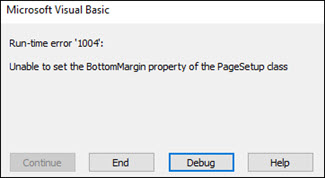
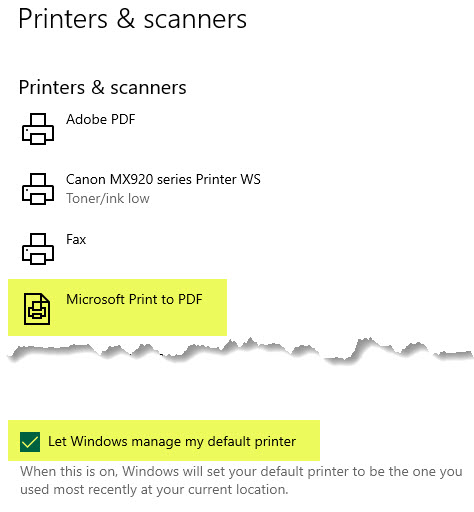
To correct this error when you already have a printer installed, you need to make that printer the default. If you do not have an installed printer, add a printer to Windows and make it the default printer. We recommend setting as a printer the Microsoft Print to PDF.
To change or set the printer In Windows 10 open Settings --> Devices --> Printers & Scanners and select/install a printer. Generally, you should let Windows 10 manage the default printer. To allow this, check the check box shown at the bottom of the figure below.
In older versions of Windows, the settings to add a printer and make it the default may be found in the Control Panel.

When you open a database, Access creates a "Lock file" with the extension ".LDB". When you close a database, that lock file should be automatically removed however, an error can prevent this. You can fix this by first closing all Enviro Data programs. In Windows File Explorer searching the folder C:\Envior\EData8 folder for a file with an LDB extension and delete it.
If you are unable to fix this error, contact
Starting with Version 8 B, the calculations routines have been revised to always re-calculate if results have been added to the Analyses table. If results have been edited or re-imported, if a Display Options setting has been changed, or as in the case of some existing data calculated with incorrect units, the re-calculated values are always based on current and correct information.
Additionally, the calculations always use the Parameter Units that are set up for the parameter and matrix, in the Parameters table so make sure parameter units are set up correctly. And, for results with inconsistent units, always set Display Options to perform Unit Conversions.
A license file, GCSLicense.mde, stores information for concurrent use licensing in Enviro Data and is installed in a folder that is visible to all prospective users. This file is usually placed on a server and tracks how many licenses have been purchased and are actively in use. For a virtual machine (VM), it can be placed in the Enviro folder. If there is more than one VM, it can be placed on a shared drive. For a SQL back-end, either would be fine. Once licensing is set up, an additional file, GCS.lic, is placed on your computer and points to the licesne database. .
This file also allows you to “check out” a license for using Enviro Data while not connected to your network. Note that until a checked-out license is checked back in, it is not available to any other users. However, the lock file does allow for a fixed number of overuses in emergency situations. If you exceed your licensed usage both you and Geotech and Geotech will be notified.
If you have exceeded the allowed number of overuses, or a situation exists where a computer or VM that had a license checked out has not or cannot be checked back in, the license file will need to be reset to make it available again. This will require opening the lock file, GCSLicense.mde and editing it.
If you cannot locate the main license file go to another computer running Enviro Data and open the file C:\Enviro\Edata8\GCS.lic using a text editor like Notepad. You will find the path to the license file there but be careful not to make any changes and close the file without saving it.
Next use Windows Explorer to switch to the folder where GCSLicense.mde is located. Double-click on that file and it will open in MS Access. Create and run the query shown below.
SELECT * From CheckOut
This query will open the table shown below.
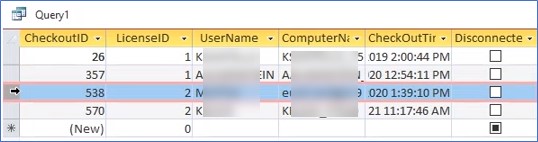
Identity the record of the computer that needs to be checked back and highlight it. Then, simply delete the record by pushing the Delete key. This will free up the locked license and allow another user to use it. The records should now look like the one shown below.
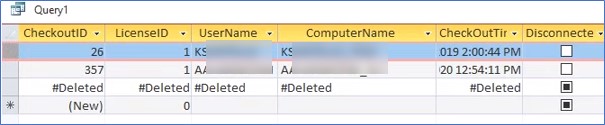
Simply close this table and file.
Back on the original computer open the EDITOR and VIEWER and follow the instructions to connect to the license database.
If you have any questions, please contact Support and we will be happy to assist.
The Viewer's Tree View (shown below) allows you to find individual results without using the Select Data form. However, since this is an ActiveX control, it can become disabled after a Windows or Access update.
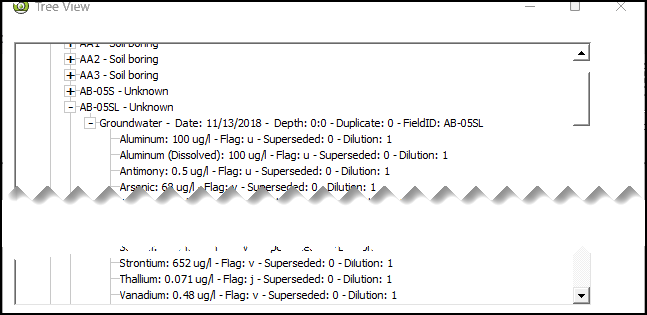
To fix this, and with the Viewer open, on the Access Menu bar click on File.
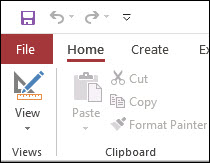
Mouse to the bottom of the selection and choose Options to open the Access Options form (not shown).
Next click Trust Center to open the Trust Center form.
On this form click Trust Center Settings where you will likely see ActiveX Settings. The Disable all controls without notification selected.
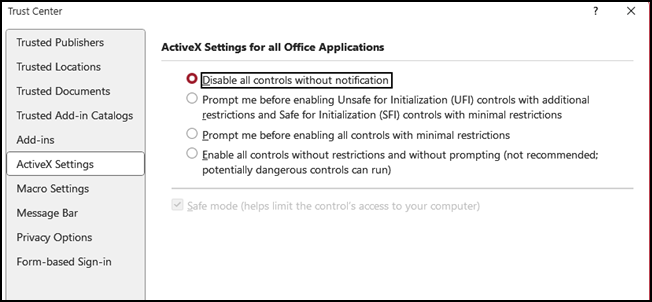
Change the selected option to Prompt me before enabling Unsafe for Initialization (UFI) controls…. This is the second most restricted security option.
Check the Safe mode… checkbox.
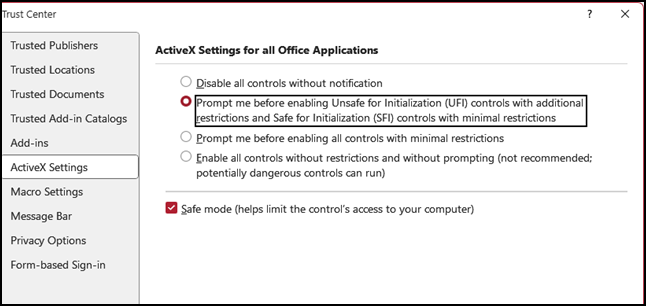
Now click OK to close the Trust Center.
You should now be back in the Access Option form. Click OK to close it.
Finally, test the Tree View to ensure it is working. If you still have problems, please contact
A Visual Basic Run-time error ‘3078 when using Enviro Data that reads "The Microsoft Access database engine cannot find an input table or query ‘ImportTypes." might be encountered when there is a connecting issue.
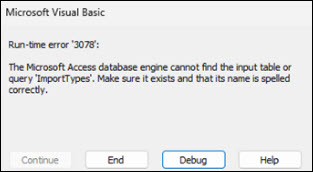
This error can be caused by Enviro Data not being attached to you Settings file that is generally located in C:\Enviro\EData8\ folder. You can make sure it exists and that it is connected correctly by clicking on Attach Database button which will open the form shown below.
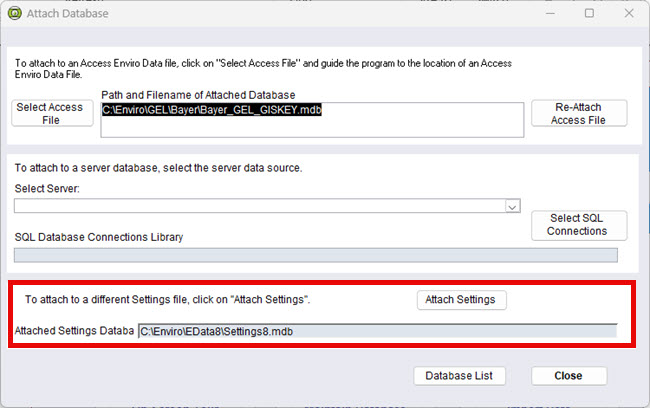
You should see the Attached Settings Database listed in the window, but you can also reattach by clicking the Attach Settings button and navigating to the folder shown above. If you still need assistance after reattaching, please contact
A Visual Basic Run-time error ‘3078 when using Enviro Data that reads "The Microsoft Access database engine cannot find an input table or query ‘ImportTypes." might be encountered when there is a connecting issue.
This error can be caused by Enviro Data not being attached to you Settings file that is generally located in C:\Enviro\EData8\ folder. You can make sure it exists and that it is connected correctly by clicking on Attach Database button which will open the form shown below.
You should see the Attached Settings Database listed in the window, but you can also reattach by clicking the Attach Settings button and navigating to the folder shown above. If you still need assistance after reattaching, please contact
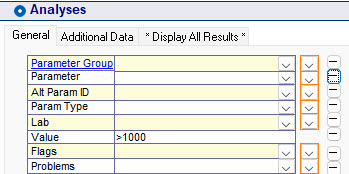
You selected the Value field in Selected Data to >1 but your reports and exports do not reflect this.
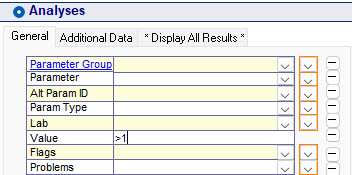
This can happen when the ReportingUnits of the selected result values are different from the Parameter Unit of the Parameter(s) being selected.
In this example, you want to report Aroclor-1260 or similar parameters and display them in mg/kg, but they are stored in ug/kg. Below are the selected results shown in the Quick List. Even though you wanted >1 mg/kg, Selected Data returns the raw data in ug/kg.
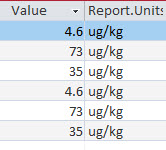
They will remain that way until Convert Units runs and uses the ParameterUnit setting of mg/kg.
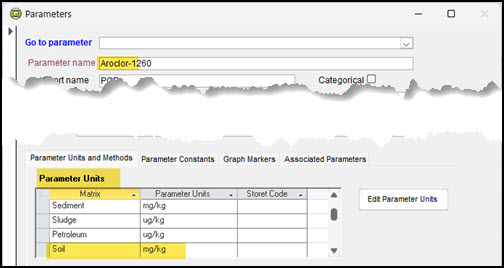
Note: before running any reports, you must make ensure that you have you have set the Unit Conversion in the Display Options form set to either Yes or Ask. If you, they will be automatically converted. If Ask is the option, you will have to approve that before conversion will take place. T

he conversion from ug/kg to mg/kg always take place after the data has been selected.
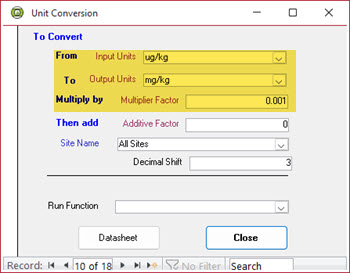
In this situation you must use >1000 in the Select Data Value field because the selected result value will be multiplied by 0.001 in the Unit Conversion to produce the desired result.
If you received the following error, it is because Microsoft in 2025 depreciated one of the components that Enviro Data used to prepare graph reports using Access.
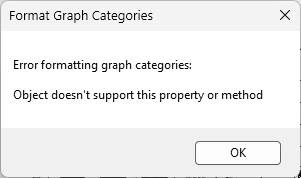
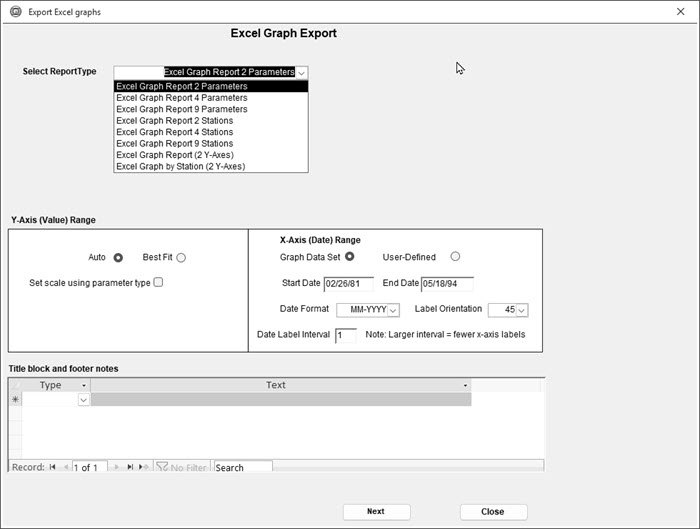
This error is because these reports are no longer available. However, and where possible, Geotech has switched to preparing many of these reports in Excel. The list of the depreciated reports is below.
Graph Report - 2 Parameters*
Graph Report - 2 Parameters (Bottom Legend)
Graph Report - 2 Stations*
Graph Report - 2 Stations (Bottom Legend)
Graph Report - 4 Parameters*
Graph Report - 4 Parameters (Bottom Legend)
Graph Report - 4 Stations*
Graph Report - 4 Stations (Bottom Legend)
Graph Report - 9 Parameters*
Graph Report - 9 Parameters (Bottom Legend)
Graph Report - 9 Stations*
Graph Report - 9 Stations (Bottom Legend)
Graph Report - Station w/Multiple Parameters
Graph Report - Stations w/ Reg Limits
Hydrographs (4 Stations)
Metals and Organics Time Series (4 Stations)
Water and NAPL Levels with Grid and Graph
In the current version of Enviro Data, these reports have been removed and we recommend you upgrade. The reports with a * after their name have been replaced by a similarly named export in the Excel Graphs section of this documentation. The Hydrograph (4 Stations) can be created using the Excel Graph Report 4 Stations and selecting for Water Level or Elevation.
For comprehensive directions please see the sectioin on Excel Graphs in the User Documentation.